Calibration Module
The AccuSOLO Calibration Module will provide a means of managing device calibrations and is accessible if the license has been activated. If your version of AccuSOLO is NOT licensed for Calibration Module, skip to Calibrating without Calibration Module.
General Calibration Module Functions
The following general calibration module functions are available:
-
Prevent running of a chamber with devices for which calibration has expired.
-
Capture readings from multiple devices if the devices are in the same environment.
-
Allow use of an alternate standard for a reading.
-
Only allow use of primary standards with a valid calibration date.
-
Prevent the system from actuating various devices during calibration.
-
Issue e-mail alerts reporting on devices for which calibration will expire within 10 calendar days.
-
Provide 21 CFR Part 11 compliant electronic signatures on the calibration certificate.
Primary Standard Maintenance
Before any equipment can be calibrated, a Primary Standard will be associated with each Calibration Session. To manage primary standards, select Administration > Primary Standard Management:
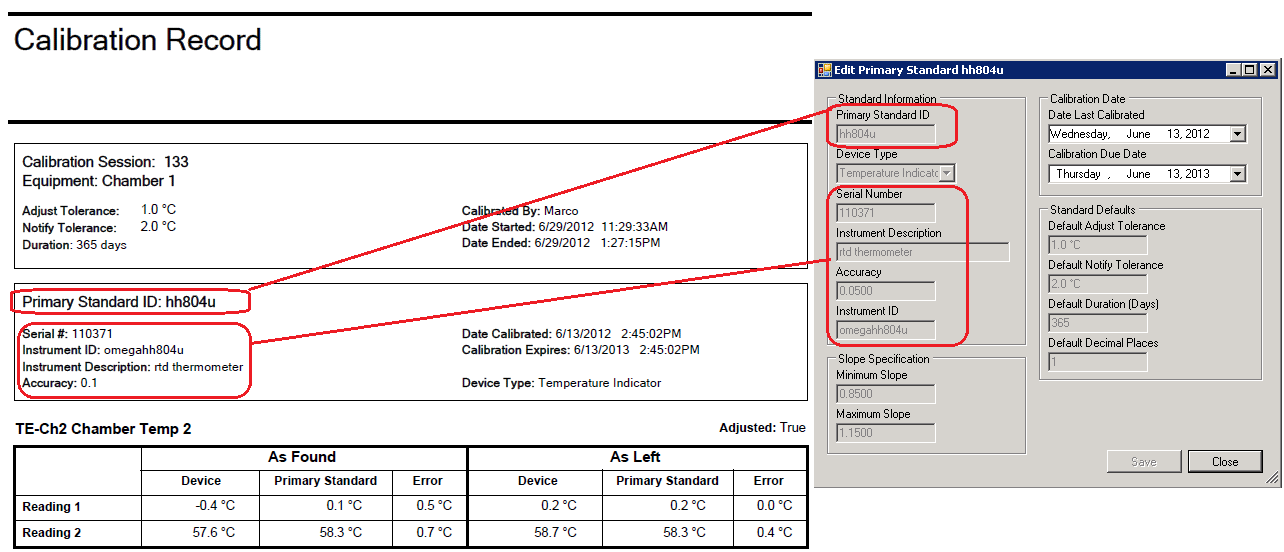
Users with appropriate privilege levels will be able to add, edit and delete Primary Standard entries. A Primary Standard will include the information listed below. For details, see Calibration Module.
-
Primary Standard ID – info only, appears on the report.
-
Device Type for which this Primary Standard is valid – in any Calibration Session associated to this Primary Standard, only devices belonging to the selected Device Type will be available for calibration.
-
Primary Standard Serial Number – info only, appears on the report.
-
Instrument Description – info only, appears on the report.
-
Accuracy – info only, appears on the report.
-
Instrument ID – info only, appears on the report.
-
Date of the last calibration of this Primary Standard.
-
Due date for the calibration of this Primary Standard.
-
Default Adjust Tolerance
-
Specifies the default allowed error (between the reading of the device being calibrated and the primary standard reading) before adjustment is required.
-
-
Default Notify Tolerance
-
Specifies the default allowed error (between the reading of the device being calibrated and the primary standard reading) before notification is required.
-
-
Default Duration (in days) that the device calibration will be valid
-
Minimum/Maximum slope: slope defined during the two-point calibration must fall within these limits otherwise the system will not allow you to calibrate
-
These limits are in place to prevent you from making an adjustment which is too large
-
-
Default Decimal Places value configured for any primary standard is used for rounding the values in:
-
Adjust Tolerance field
-
Notify Tolerance Field
-
Accuracy Field
-
New Primary Standard
-
Select New.
-
Fill in fields with appropriate information.
-
Click Save.
Edit Primary Standard
-
Highlight the Primary Standard and click Edit.
-
If the Primary Standard has not been used all fields are available for edit.
-
If the Primary Standard has been used only the Calibration Date fields are available for edit.
Delete Primary Standard
-
Highlight the Primary Standard and click Delete.
-
On the confirmation pop-up click Yes.
Primary Standard Expiration Notification
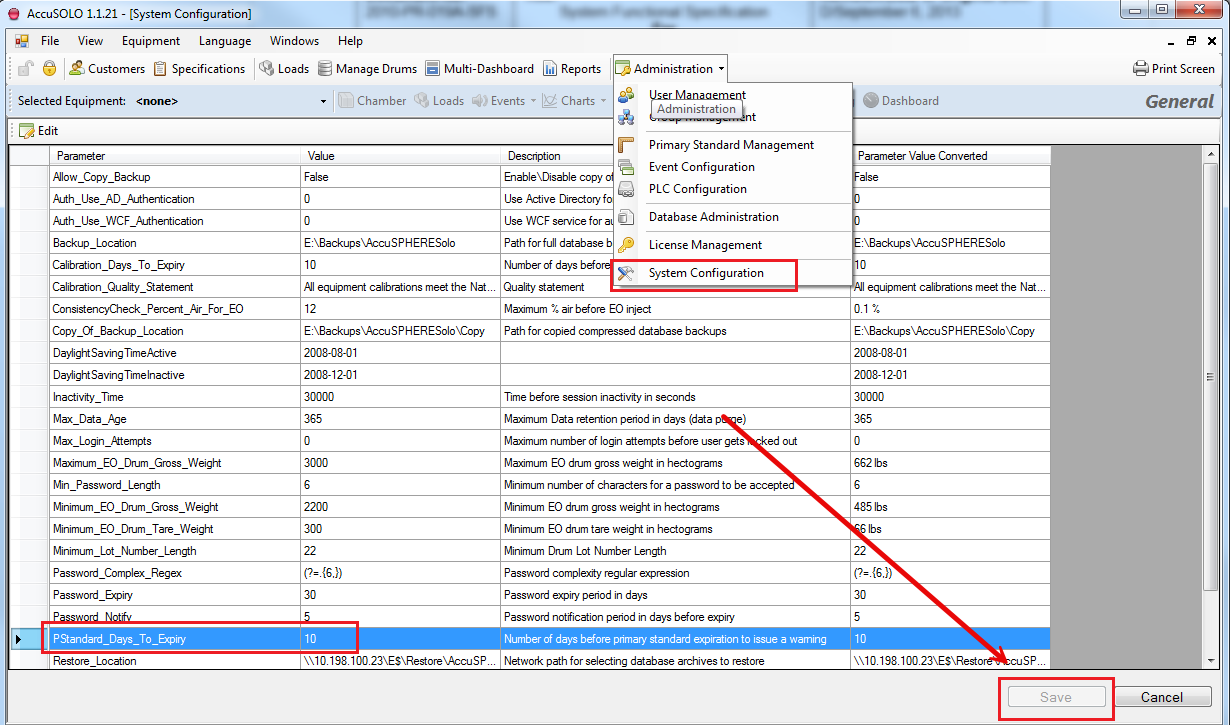
The system can be configured to issue e-mail notifications a number of days before a primary standard calibration is about to expire. This is achieved using the PStandard_Days_To_Expiry system configuration parameter.
Select the System Configuration menu from the Administration drop-down, set the number of days before primary standard expiration to issue a warning, and click Save.
Performing Calibration
Note: In order to perform calibration or reset a calibration, the chamber must be in Stop mode and in Dormant sequence.
If the site is configured to allow calibration of EO concentration sensors while the chamber is running, the system will allow calibration while the chamber is in a cycle as long as the sensor is of EO concentration type and the user has the appropriate privilege level (“Calibrate EO While Running”).
When users calibrate devices belonging to a calibration session, the following information and functions are available:
-
Primary Standard (and Alternate Standard if applicable) session details.
-
Real Time Value (real time sensor reading) as obtained from the PLC.
-
Primary Standard As Found and As Left readings.
-
Device As Found and As Left Readings.
-
An optional mid-point (M) that, if used, serves as a check on sensor linearity; it has not effect on the calibration constant.
-
“As Found” mid-point and “As Left” mid-point reading are optional. If none of the mid-points are read, then the whole row will be omitted from the report as well as excluded from the signature content hash.
-
-
“Adjustment Made” flag.
-
“Adjustment Required” flag.
-
“Notify Required” flag.
-
Indication if slope is outside specified parameters.
-
Ability to capture reading, calibrate, or reset calibration for individual devices in the device list
-
Ability to manually enter As Found readings.
-
Manually entered readings will be denoted by “(M)” on the calibration record report.
-
-
When the “Calibrate” button is clicked:
-
The system will always recalculate calibration parameters regardless of whether it is within the adjustment tolerance or not.
-
If adjustment was required, the system will recalculate calibration parameters and set the “Adjustment Made” flag.
-
If adjustment was not required, the system will allow users to copy “As Found” values to the “As Left” values for all devices in the group. The reference values entered will be copied as well.
-
Copying “As Found” to “As Left” will be disabled when adjustment is required.
-
The “Adjusted” flag will be set whenever the Calibrate button is clicked irrespective of the tolerance.
-
New Session
-
Select New.
-
Select a Primary Standard from the drop-down.
-
If using an alternate standard for reading 2 place a check mark in the box next to Use Alternate Standard For Reading 2.
-
Select the 2nd Primary Standard from the drop-down.
-
-
Notify Tolerance, Adjust Tolerance and Duration can be left at default or a new value can be specified by selecting the radial buttons and typing in the new value.
-
Place a checkmark in the Selected column of the device to be calibrated.
-
More than one device may be selected as long as they can all fit into the calibration device at the same time.
-
-
To save click the X to exit and select Yes to save.
Edit Session
-
Highlight the session to edit and click Edit.
-
The Primary Standard cannot be changed.
Calibrate Devices
-
Highlight the session to calibrate and click Calibrate Device(s).
-
For devices that have not been calibrated all fields except from Real Time Value will be blank.
-
Highlight the device name.
-
Enter the As Found Primary Standard 1.
-
Click Capture Reading 1 in the As Found box.
-
After Reading 1 is complete enter As Found Primary Standard 2.
-
Click Capture Reading 2 in the As Found box.
-
Adjustments Required.
-
If the device is determined to need recalibration the software places a checkmark in the Adjustments Required column.
-
If the Notify Tolerance is higher than the Default set in the Primary Standard a checkmark is placed in the Notify Required field.
-
-
If the Adjustments Required box is check click the Calibrate button.
Note: ONLY CLICK CALIBRATE ONCE!
-
After calibration is complete a checkmark will be displayed in the Adjustment Made column.
-
Enter the As Left Primary Standard 1.
-
Click Capture Reading 1 in the As Left box.
-
After Reading 1 is complete enter As Left Primary Standard 2.
-
Click Capture Reading 2 in the As Left box.
-
The As Left Reading Values will be displayed and should match the Standard value.
Calibration Records
Calibration records will be available for print, preview, and electronic signature. The same user will not be able to apply both electronic signatures.
-
A Specification can be approved by highlighting the Specification and clicking Preview/Sign on the toolbar.
-
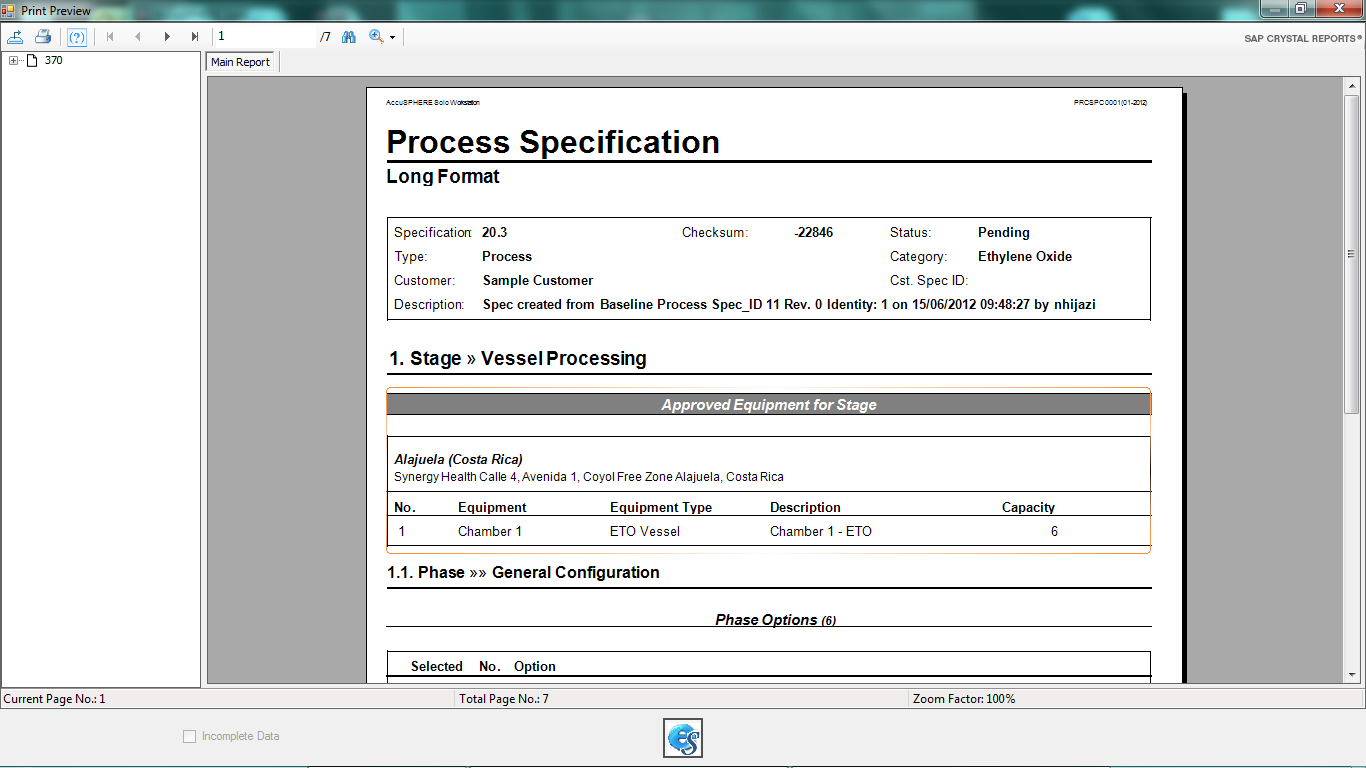
The Calibration Report is displayed.
-
To sign off on the report click the button.
-
The first time a user electronically signs a document they are required to verify their identity.
-
Read the statement and click Accept.
-
This is only required the first time a user electronically signs.
-
-
Enter password twice.
-
The last page of the report displays a Signature Manifest. The Prepared By section is populated with the Name, date and time of 1st signature.
-
A second user (cannot be the same person as signature #1) must repeat the steps in 6.2.5 in order to finalize the approval.
-
After the second electronic signature is entered the report is converted to a PDF and both signatures are displayed in the Signature Manifest.
-
The device calibration is then considered approved.
Expired Calibrations
For start-up purposes, device calibration will be considered “expired” 24 hours before the due date. The AccuSOLO Calibration Module will indicate the following:
-
If the chamber has valid calibrations
-
The system will not allow downloading a load to the chamber for processing if there are expired device calibrations
-
-
Number of days until the chamber will have expired calibration(s)
An “Expired Calibrations” report will be available which will list all devices for which calibration has expired or is about to expire in 10 days.
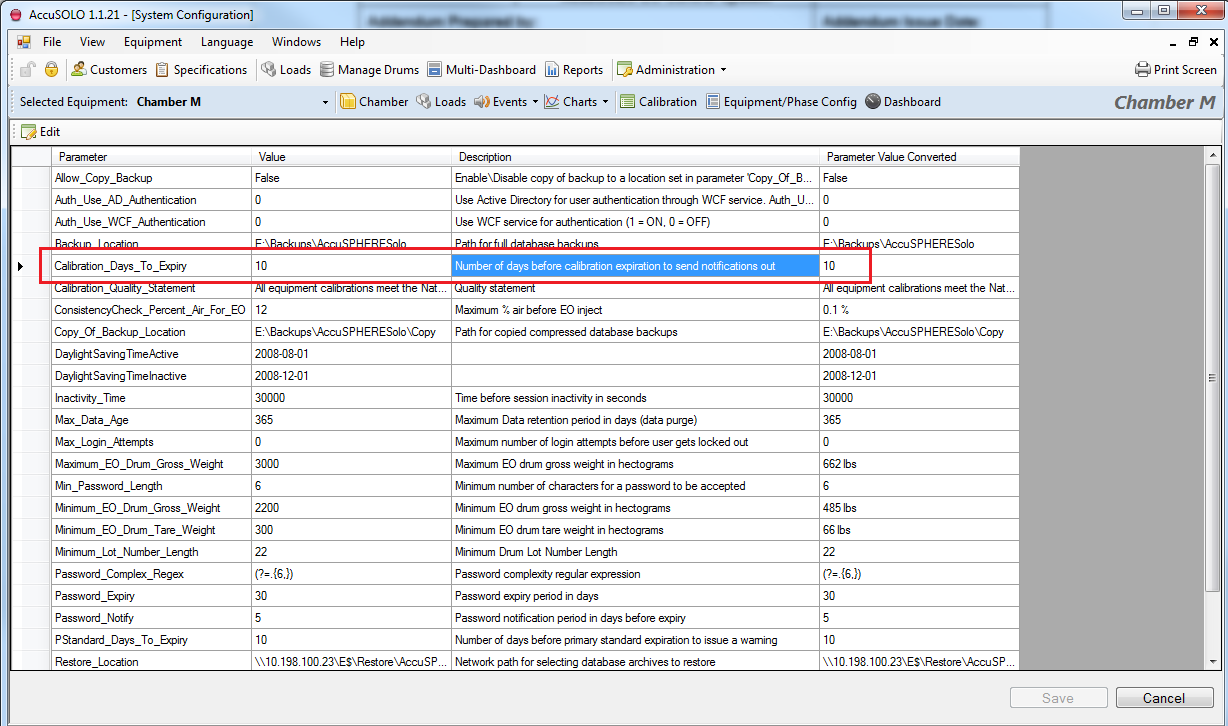
The system can be configured to issue e-mail notifications a number of days before a device calibration is about to expire. This is achieved using the Calibration_Days_To_Expiry system configuration parameter.
Select the System Configuration menu from the Administration drop-down, set the number of days before device calibration expiration to issue a warning, and click Save:
Calibrating without Calibration Module
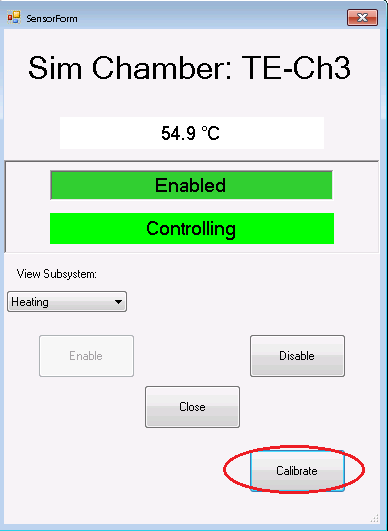
If the calibration module is NOT licensed for your version of AccuSOLO, calibration functions are accessed via the Sensor Status pop-up:
-
Double click the sensor you wish to calibrate and then click the “Calibrate” button on the pop-up that is presented:
-
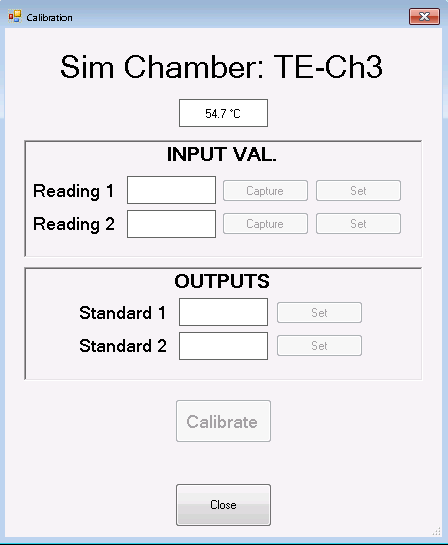
The calibration pop-up will be presented which will allow you to enter calibration data:
-
Capture and Set buttons are only available when Chamber is Stopped and Dormant.
-
For Readings 1 & 2 values may be input two ways:
-
Click ‘capture’ to record current sensor reading OR
-
Click ‘set’ to manually enter sensor reading.
-
-
For Standards 1 & 2, click the set button to enter a value. Calibrate button will be available when values have been entered for all Readings and Outputs.
-
Click Calibrate button to apply slope and offset to sensor.
-
Close form when complete.