Database Maintenance
The intended audience for this section is advanced users and network/IT specialists. All parameters associated to backup and restore features can be configured using the System Configuration screen.
The system can be configured to back up the database to a separate area on the hard drive. This is accomplished with a backup service installed on a computer/server.
Backup of the Database Log
Each 30 minutes the database log is backed up to the <Backup Directory>\Log subfolder. The log is then copied to the <Copy Backup>\Log folder. The destination paths and copying functionality need to be configured in the System Configuration module of the AccuSOLO application (see section for Configuring Backups more information).
Full Backup
A daily full database backup is performed and the backup file is stored in the <Backup Directory> and copied to the <Copy Backup> directory. Any full or log backups older than 30 days are deleted in the <Backup Directory>, <Backup Directory>\Log, <Copy Backup> and in <Copy Backup>\Log folders.
On the first of each month, a sub-folder <Month-YYYY> is created in the <Copy Backup> directory and the current backup is copied to this sub-folder. This subfolder will not be further manipulated by the system and requires manual maintenance.
The destination paths and copying functionality need to be configured in the System Configuration module of the AccuSOLO application (see section for Configuring Backups more information).
Data Purging
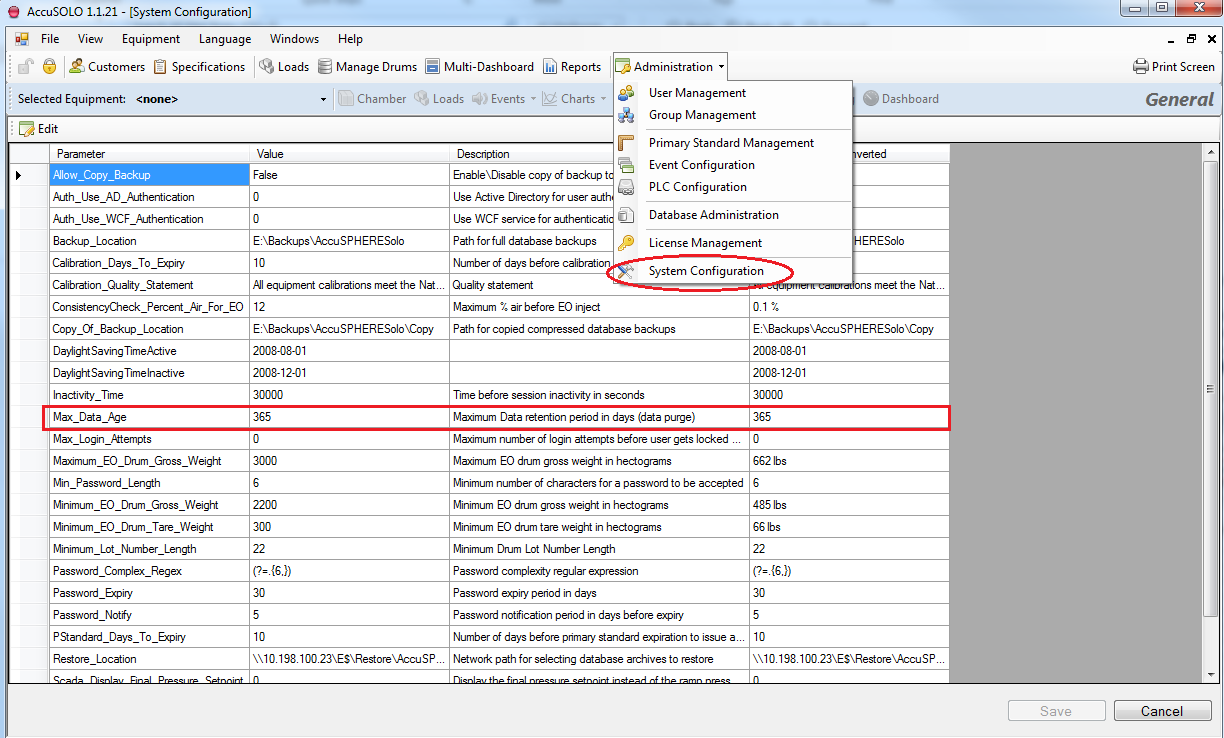
After each full backup, data older than 12 months will be purged from the database. The “12 months” value is a configurable parameter that can be changed via the System Configuration screen as described in section System Configuration Form (see “The age in days of data to be kept in the database” parameter).
-
Launch the AccuSOLO client and select System Configuration from the Administration drop down menu.
-
Modify the “Max_Data_Age” parameter to specify the retention period (in days).
-
Click Save in the bottom-right corner of the screen when done.
Configuring Backups
To configure backups and edit the storage locations, perform the following steps (note that the destination paths you enter will always be from the point of view of the SQL server machine):
-
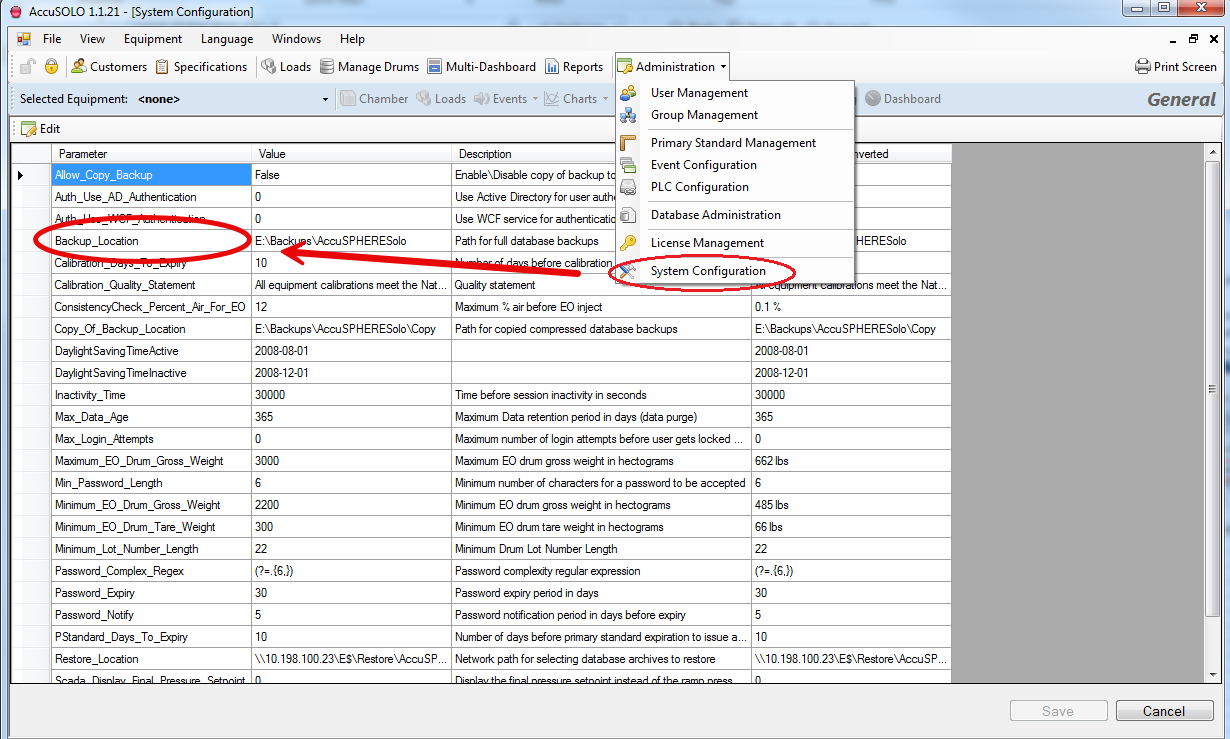
Launch the AccuSOLO client and select System Configuration from the Administration drop-down menu.
-
In the Backup_Location parameter, enter the path for the database backups.
-
To enable copying of compressed database backups to a different physical location,
-
Set the “Allow_Copy_Backup” parameter to True.
-
Configure the path for copied compressed database backups via the “Copy_Of_Backup_Location” parameter.
The backup software will manage this destination by deleting backups older than 30 days but keeping one full backup per month indefinitely.
-
Note: The destination paths you enter above will always be from the point of view of the SQL server machine.
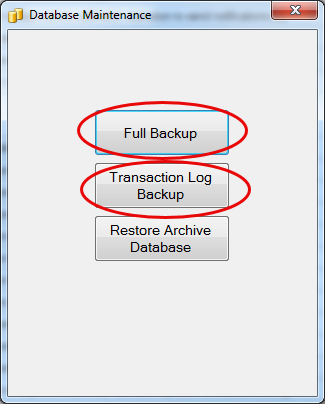
The backups are scheduled by the AccuSOLO software (30 minutes and daily) but you can always manually force a backup to occur by selecting “Database Administration” from the Administration drop-down menu and selecting “Transaction Log Backup” or “Full Backup”.
Data Archiving
Database backups are used for archiving purposes. For information on how to review archived data, see section Reviewing Archived Historical Data.
Reviewing Archived Historical Data
Old backups can be restored to a separate database. Reports can be run against those restored databases.
-
To restore a backup perform the following:
-
Log onto the SQL server on which the AccuSOLO database resides and launch the client
-
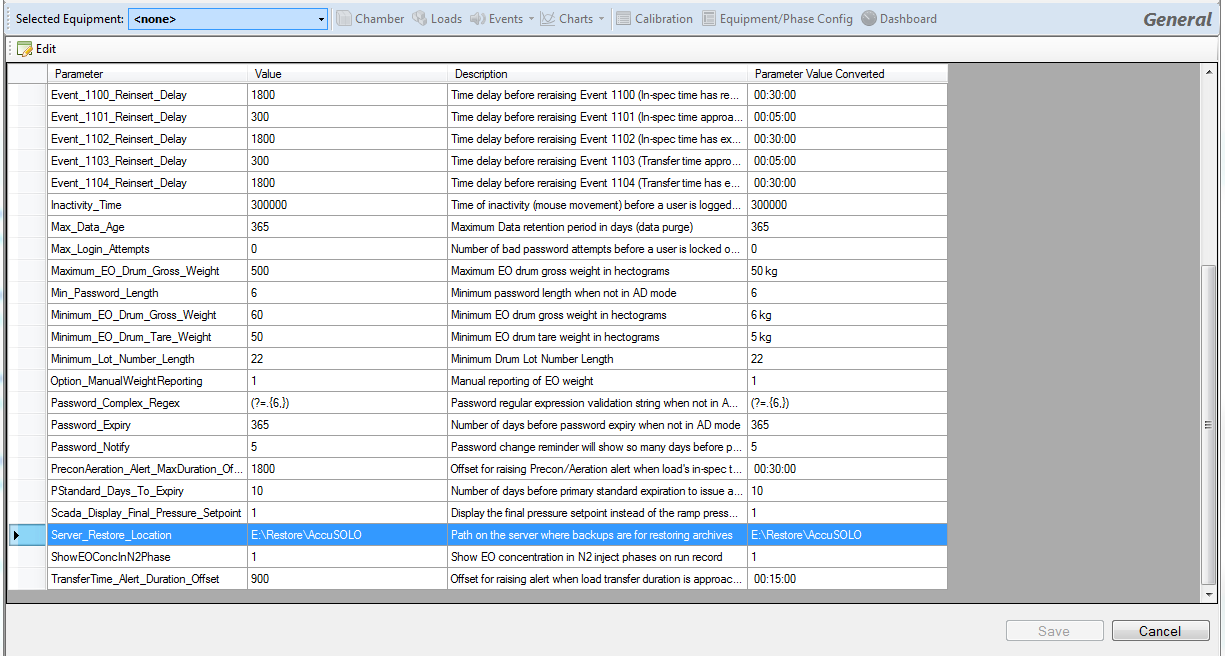
Copy the database backup you wish to restore into the location defined by the System Configuration parameter “Server_Restore_Location”. This is the path on the server where the backup must be copied in order to restore it.
-
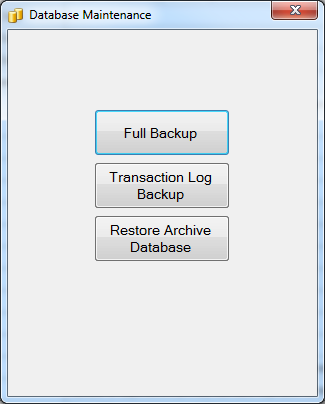
In the AccuSOLO client, select Database Administration from the Administration drop down and then select Restore Archive Database:
-
In the “File Open” dialog select the backup file you wish to restore and click Open. Wait while the backup is restored to the Archive instance of the database. This may take several minutes depending on the size of your backup.
-
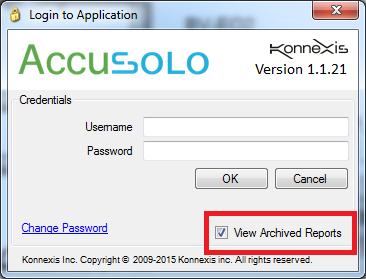
Log out and then log back into the application with the “View Archived Reports” check box checked.
-
Select Reports and review the desired reports. Note the reports available will be the archived reports that were restored.
-
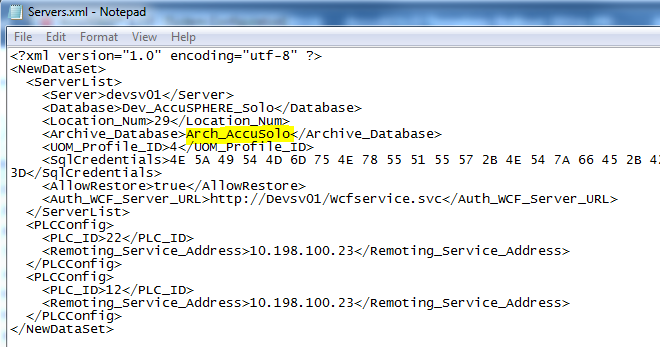
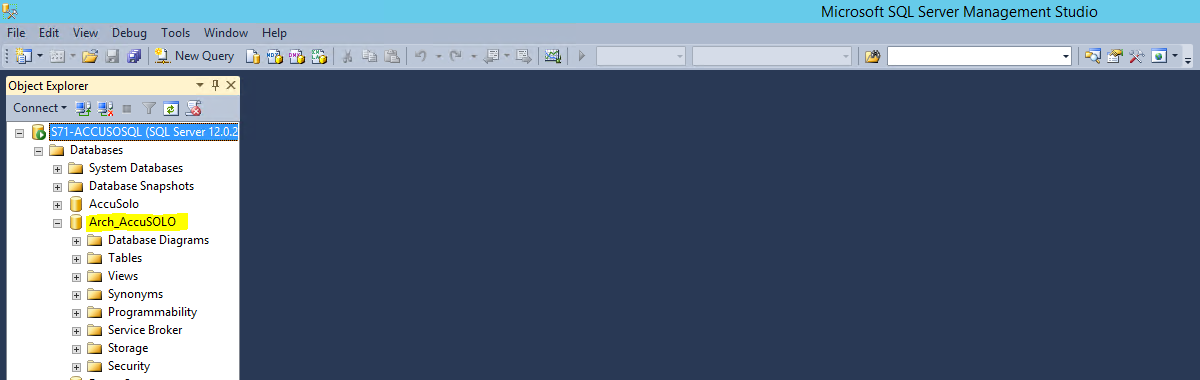
Note: In order for the restore function to work correctly, an archive instance of the database must exist with the same name as is defined in the servers.xml file for the client application. For example, if you name the archive database “Arch_AccuSOLO” in the servers.xml file, then the archive database must also be called Arch_AccuSOLO.
Database ROWS and LOGS files must also be located in a folder where the Windows account that the AccuSOLO Client is running under has write access.
See screenshots below for additional clarification.